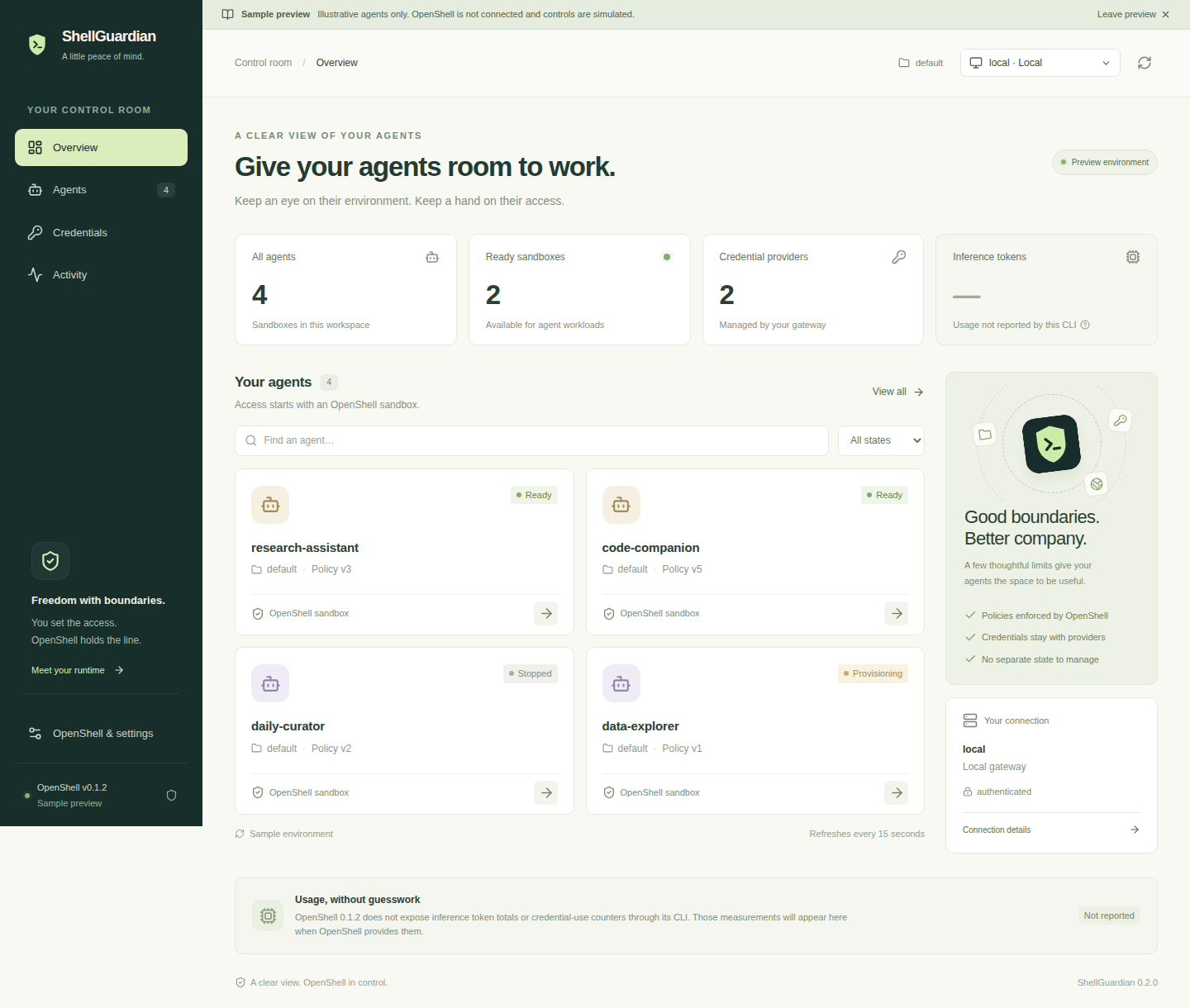
A desktop control room for NVIDIA OpenShell agents.
ShellGuardian is a Tauri app that makes agent access easier to understand and manage.
Run it on your computer to inspect sandbox policies, review provider attachments, talk
to an interactive agent, or open a terminal inside its sandbox. Connect through your
installed OpenShell CLI to gateways on localhost, your local network, or remote systems.
OpenShell owns credentials, agent state, authentication, and enforcement. ShellGuardian
is a thin frontend with no agent database or separate policy engine. This website only
provides project information and downloads; it does not connect to your agents.
A clear view of your existing OpenShell environment.
Inspect access
Read effective and base policies, inspect filesystem and network boundaries, and see
which credential providers are attached. Provider panels show metadata, never
credential values. Interactive terminal output can contain sensitive information.
Review changes
Review the target sandbox and workspace before starting or stopping a sandbox,
changing provider access, or asking OpenShell to apply a network policy.
Stay informed
Read bounded activity logs and see the installed OpenShell version and official
release status. Reuse registered gateways without copying their authentication.
Connect over SSH
Reach a remote server with your SSH key or agent and its existing OpenShell mTLS
profile. Connections last for the app session and close when you disconnect or exit.
Talk to your agent
Attach to the sandbox's existing main process. If it is an interactive agent, talk to
it in its own terminal interface. Detach without stopping the agent. This is not a
separate chat service or a new model conversation.
Open a full terminal
Start a separate interactive shell inside the selected sandbox, not on your host.
Inspect files or run commands within OpenShell's boundaries. Session output stays in
memory, with no ShellGuardian transcript archive.
Follow your OS
Light and dark appearance follow your system settings, including changes while the app
is open. No separate theme preference to maintain.
Pin it on Ubuntu
Find the shield-and-terminal icon in Show Apps and pin it to your dock. The launcher
keeps its identity through app updates.
Early preview. Interactive sessions use OpenShell's existing attach and
sandbox-shell commands, including session SSH connections. Physical remote-host
interactive acceptance and full policy/lifecycle mutation acceptance remain open.
Inference-token totals, credential-use counters, and CPU/memory usage are unavailable in
the inspected OpenShell 0.1.2 CLI.
Read the acceptance status.
02
Install
Per-user installation. No sudo or changes to your agents.
Before you install
Linux x86_64 with GTK 3 and WebKitGTK 4.1 runtime libraries.
An installed and configured NVIDIA OpenShell CLI. The inspected integration targets
OpenShell 0.1.2.
Register and authenticate your gateway in OpenShell first. ShellGuardian reuses that
configuration.
For SSH connections, configure OpenSSH key or agent authentication and trust the
server's host key first. Select the remote server's registered mTLS profile in the
app.
macOS, Windows, and Linux ARM packages are not published yet.
The installer downloads the AppImage over HTTPS, verifies its SHA256 checksum, and adds a
launcher and desktop entry in your user account. It never installs or upgrades OpenShell.
Launch
shellguardian
If ~/.local/bin is not on your PATH, use
~/.local/bin/shellguardian. The launcher extracts the AppImage without
requiring FUSE.
On Ubuntu, you can also launch from Show Apps, then right-click the dock icon and choose
Pin to Dash or Add to Favorites.
Connect to a remote server
Open OpenShell & settings, enter user@server or an SSH
host alias, and choose that server's OpenShell authentication profile. The remote
OpenShell port defaults to 17670. Leave the SSH port blank to use your SSH
configuration. See the
SSH setup requirements, including gateway certificate requirements.
Inspect the installer or pin a version
Download the script to a temporary directory and read it before running it:
The desktop app checks for signed ShellGuardian releases at launch and every six hours
while open. Verified updates install on normal close, or when you choose “Restart to
update.” In-flight OpenShell changes block installation.
Turn automatic app updates off in OpenShell & settings. That choice
is saved in one small preference file, not a database. OpenShell upgrades remain
separate and explicit.
03
Releases
Versioned downloads, release notes, and verification files.